How To ? Item Documentation
Room Management with Custom Price Calendar v1.1
Room Management with Custom Price Calendar is a simple way to custom your room price for special date like weekend price, holiday price, and other event.
You can also add/edit room and change the status of availabilty for each room.
This is just part of a feature that you can easily integrate for your book system like hotel, guest house, or just room rent.
Created: 11/12/2016. Latest Update: 16/02/2022
Crafted with love by Otakita
- You can Add or Edit room.
- Custom block calendar. You can choose any dates to edit room price.
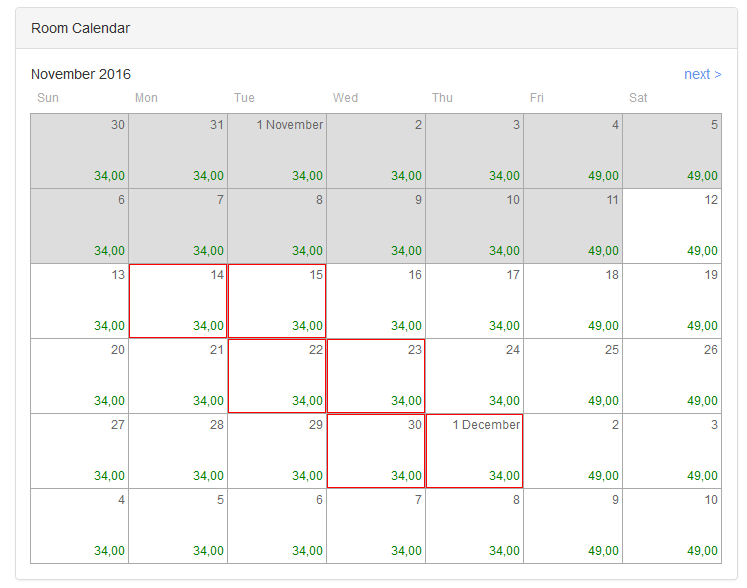
- You can specify the price or available status.
Setup Your Files
- You can extract the zip file in folder www or htdocs(your localhost).
- There will be two folders, folder DB, DOCUMENTATION and public_html.
Folder DB contains sql that you have to import (first, create your database), while folder public_html contains all file application. - That's it. Your file has been ready.
Confirguration Database
- Open file RootController.php in folder public_html/classes/.
- You can change the settings according to your mysql settings.
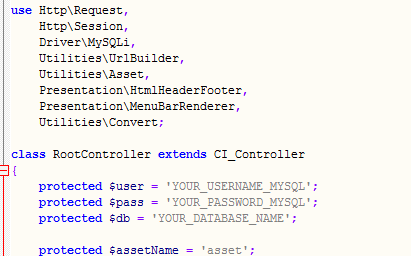
- You can now run the program from your localhost.
The basic framework for this program is use CodeIgniter that we have a lot of modification. But we hope you can easily understanding.
We will give short explanation below :
- RootController.php in public_html/classes/ contains the initial settings that will be used by all controllers.
- Controllers and Views are exactly same like CodeIgniter framework.
- We doesn't use models. As a replacement, there are folder classes/Domain/ and classes/DataSource/.
- Domain is representation of fields of table. For example RoomDomain.php is representation of fields room table.
- DataSource is to do the query to access the database.
- The other important to know is classes/Presentation/.
You can add asset CSS or Javascript with HtmlHeaderFooter.php.
To do render side menu, you can use file MenuBarRenderer.php.
File calendar.otakita.js (public_html/asset/js/) is responsible for rendering the calendar. You can read the basic calendar tutorial in here.
We use data array for rendering data price and blocking in calendar. Format array data is like below :
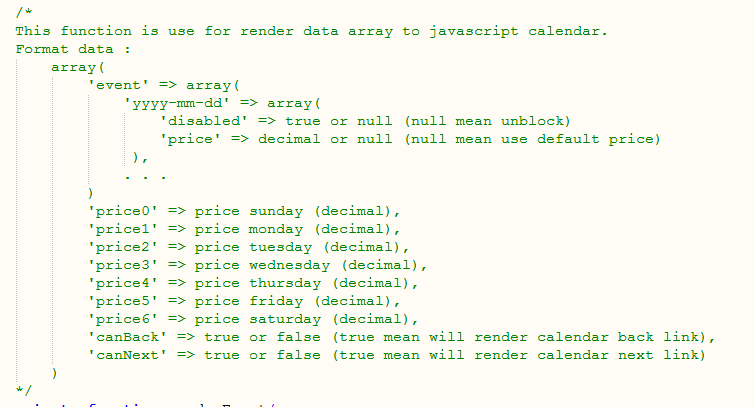
Here the explanation :
-
Data 'event' are use for describe what date contains custom data like blocking (disabled => true) or custom price (price => decimal).
You can describe as many date in selected month. - Data 'price0' to 'price6' will use for default price in each day. Data 'price0' is strating price for Monday.
- Data 'canBack' is used to whether it could choose an earlier month or not. If the value is true, it will render 'back' link.
- Data 'canBack' is used to whether it could choose a next month or not. If the value is true, it will render 'next' link.
For render calendar, first you can instance class Calendar() from calendar.otakita.js. You will need 3 parameters like array data like above, month data (format: mm), and year data (format(YYYY).
Specifically for month data, starting data is from 00 for Janurary to 11 for December.
Below is the example :
                                        cal = new Calendar(json.dataEvent, json.month, json.year);

                                        cal.generateHTML();

                                        $("#calendarData").html(cal.getHTML());